
@mudiera_admin
Mudiera Admin
Bio
Welcome to Mudiera im Admin Ask me if you need any help
Activity
Blogs: 19
Reviews: 2
Recommendations: 3
Blog Posts

Business tutorial: Client Plans for weddings and bespoke work
New tool guide Client Plans: Deposits, Milestones and Contracts If what you sell is not a single fixed-length booking — a wedding, a multi-day event, a bespoke project with staged payments — Client Plans is built for that. Send a client a line-itemed plan, collect a deposit, track milestones, and resolve disagreements without losing the booking. Build a plan Business Studio → Client Plans 1 Add the event and line items Add the date, then list what is included — each with its own price, so the client sees exactly what they are paying for. 2 Set the deposit Decide how much is due upfront to secure the date, and when the balance is due. 3 Send the plan The client gets a link to review, accept the contract, and pay the deposit through Stripe. 4 Track with a checklist Add milestones both sides can check off as the date approaches, so nothing gets missed. Changes and disagreements Need to change the plan? Send an updated version for the client to re-agree to — the original stays on record. Something goes wrong? Either side can raise a flag on the plan, which opens a structured way to resolve it without cancelling the whole booking. Balance payment is collected the same way as the deposit — through Stripe, directly to your connected account. Where to find your plans All the plans you have sent live under Client Plans in your Business Studio. Every plan a client accepts automatically shows up as a client in your Pipeline board too.
Business tutorial: track leads with Pipeline (CRM)
New tool guide Pipeline: Never Lose Track of a Lead Pipeline is a simple CRM board built into your Business Studio. It turns every enquiry — a message, a booking request, a plan sent to a bride or client — into a card you can track from first contact to signed client, without a spreadsheet. How cards get created Business Studio → Pipeline Automatically: when someone messages you, requests a booking, or is sent a Client Plan, a lead card appears on your board. Manually: add a card yourself for a lead that came in another way — a phone call, a referral, an in-person enquiry. Moving cards through stages Drag a card between stages as the relationship progresses — for example New → Contacted → Quoted → Client. Auto-conversion: when a lead accepts a Client Plan or confirms a paid booking, their card moves to "Client" automatically — you do not need to do it by hand. Why this matters Enquiries stop falling through the cracks when they are all in one board instead of scattered across messages. You can see at a glance how many leads are stuck at "Quoted" and follow up before they go cold. Works alongside Client Plans and Bookings — you do not need a separate CRM subscription.

5 Ways Muslim-Owned Businesses in the UK Can Get Found by More Local Customers
If you run a Muslim-owned business in the UK — a restaurant, a salon, an events business, a tutoring service — you already know the biggest challenge usually isn't the work itself. It's getting found by the customers who are actively searching for exactly what you offer, before they settle for whoever shows up first on a generic search.

How to Find Halal Businesses Near You in the UK (2026 Guide)
If you've ever typed "halal businesses near me" into Google and ended up scrolling through outdated directories or restaurant review sites that don't actually check anything, you're not alone. Finding businesses that genuinely understand halal values — not just restaurants, but barbers, event venues, tutors, photographers, and shops — is harder than it should be in the UK.

Halal Restaurants and Businesses in London: A Practical Guide to Finding Ones You Can Trust
London has one of the largest and most diverse Muslim communities in the UK, which means there's no shortage of halal restaurants, cafes, and businesses across the city. The challenge isn't availability — it's knowing which ones you can actually trust before you spend your money or your evening.

Stripe Setup for Business Profiles: from onboarding to payout
1. Mudiera uses Stripe-hosted onboarding. You enter business and payout details directly in Stripe, not on Mudiera.
Business Onboarding Tutorial: create your business profile (get listed)
Business onboarding · updated Aug 2026 Set Up Your Business Profile For business owners: your Mudiera profile helps customers find you, contact you, and book you. Everything you manage after that — bookings, products, client plans, leads — lives in one place: your Business Studio . How to start Account menu / Sidebar 1 New user: sign up first You need an account before you can create a business profile. Open the account menu and tap Sign up , or open the sidebar and tap + Business Profile . 2 Existing user: upgrade to a business profile Open the account menu or sidebar and tap + Business Profile . You will be taken to business setup, then straight into your Business Studio. Business profile setup (complete these in order) Profile setup Do profile setup first. Once the basics are complete, move on to picking your tools. 1 Business name + category Choose a clear name and the closest category so customers can find you in search and Discover. 2 Business email + contact Use an email you check — important for customer messages and account updates. 3 Location / postcode + service area Set your location so nearby customers see you first. Mention any service area (delivery / mobile service). 4 Description (make it convert) Write a short description that clearly shows who it is for, what you offer, and how to book. Format: who it is for → what you offer → how to book 5 Branding: logo + cover Upload a clean logo and a bright cover image. This is the fastest way to look trustworthy. 6 Save Tap Save . Your profile is now live for customers, and your Business Studio is ready. Your Business Studio: the tools that matter most Business Studio Every business gets the same toolkit. Turn on only what you will actually use — you can add more anytime from the tool switcher inside your Studio. Get discovered & paid Profile (your public page), Payment Connection (Stripe — required before you can take any paid booking or order), Badges , and SEO (includes Spotlight, which can feature you on the homepage carousel and in the weekly highlights email). Serve customers Bookings (appointment-style services) or Reservations (table/seating businesses), Inbox for messages, and Client Plans for bespoke, staggered-pricing work like weddings and events — deposits, milestones, and a built-in way to resolve disagreements without losing the booking. Sell Products & Orders is one unified tool for products, orders, shipping, subscriptions and payouts. Storefronts lets you run more than one branded shop page, each with its own catalogue, from the same account. Grow and manage leads Pipeline is a simple CRM that tracks every enquiry as a lead, from first contact through to a signed client, automatically when someone accepts a plan or confirms a booking. Analytics and Growth show what customers click and where enquiries come from. Community & content Events , Clubs , Classes , Courses , Careers , Deals / Offers , Forms , Menu , Themes , and Articles for publishing blog posts and guides. Reminder: connect Stripe under Payment Connection before you enable any tool that takes payment (Bookings, Products & Orders, Client Plans).

Events and clubs: RSVP, join, and participate
Events & Clubs Connect with the community through events and clubs. Whether you want to attend something this week or join a group long‑term, this page shows you where to start. Events Find → Open → Book Events are the easiest way to discover what’s happening nearby. Use filters to narrow down what you want, then open an event to see full details before you book. 1 Open Events Open Events from the main navigation. 2 Filter by date and category Filter by date and category to quickly find what fits your schedule. Tip: start with a broad filter (this weekend / this month), then narrow down. 3 Open an event for details Tap an event to see the full details (location, time, requirements, and who it’s for). 4 Book or RSVP Tap Book or RSVP to secure your spot. If you’re not ready, save the date and come back later — popular events can fill up. Clubs Pick → Join Clubs are for ongoing community—groups you can join to meet people, share interests, and stay in the loop. 1 Open Clubs Open Clubs from the main navigation. 2 Pick a club Choose a club that matches your interests. Tip: check the club description for activity level and what kind of events they run. 3 Join Tap Join to become a member. Once you join, you’ll usually see updates, discussions, and upcoming meetups in one place. What it looks like Here’s a quick preview of the events and clubs on the profile page screen:

Business tutorial: promote your listing (reviews, spotlight, analytics)
Updated Aug 2026 Grow Your Business Use trust signals and data to grow consistently. The goal is simple: make it easy for customers to choose you, then improve one thing at a time based on what is working. Get more bookings Small habits compound. These three changes usually have the biggest impact on bookings and conversions. Reply quickly in messages. Customers often book whoever responds first. Check your Inbox daily. Keep photos updated. Fresh photos make your business feel active and trustworthy. Encourage happy customers to leave reviews. Reviews are one of the strongest trust signals — ask right after a successful booking. Track every enquiry with Pipeline Every message, booking request, and plan enquiry can be tracked as a lead in Pipeline , your built-in CRM board. When someone accepts a Client Plan or confirms a booking, they move to "client" automatically — no manual tracking, no enquiries slipping through the cracks. Spotlight Spotlight lives inside the SEO tool in your Business Studio. It lets you pick a short message and a hero image that Mudiera can feature on the homepage carousel and in the weekly highlights email. Best times to use it: a new service launch, a seasonal promotion, filling empty slots, or a limited-time offer. Spotlight is a Mudiera Pro feature. Free-plan businesses can preview it from the SEO tool and upgrade when ready. Analytics & Growth These two tools help you stop guessing. Look for patterns in what customers interact with, then make one improvement at a time. Check what customers click most in Analytics — services, photos, booking, or contact. Watch Growth for where enquiries and conversions are coming from, so you know which channel is actually working. Test one improvement at a time. Change your headline this week, update photos next week, then compare results.

Business tutorial: turn on bookings and manage availability
Updated Aug 2026 Bookings Bookings help customers reserve time instantly and reduce back-and-forth messaging. Once your booking types and availability are set, customers can request the right service at the right time — no waiting for replies. Set up bookings Business Studio → Bookings Bookings is for appointment-style services (a haircut, a consultation, a fitting). If your business is table or seating-based instead, use Reservations from the same tool switcher — the setup works the same way. 1 Open Bookings From your Business Studio tool switcher, select Bookings . 2 Create a booking type Add a booking type (for example Haircut or Consultation ). Tip: name it the way a customer would say it out loud — short and clear. 3 Add details Add the duration, price, and any notes (what to bring, what is included). 4 Choose whether it shows in Discover Each booking type has a visibility toggle. Turn it on to let people find and book it directly from search and Discover, not just from your profile. 5 Publish Publish your booking type so customers can start requesting it. Add time slots After your booking types are ready, set your availability — this determines which days and times customers can choose from. Set weekly availability: for example, Mon–Fri, 10–6. Keep your default schedule realistic — customers will book the earliest open slot. Block off holidays and unavailable days so no one books when you are away. Keep pricing and duration consistent with what happens in real life — this reduces cancellations and last-minute "how much will it be?" messages. Handling cancellations Use a clear policy so customers know what to expect — short, friendly, and easy to find. Include: how late someone can cancel (for example "up to 24 hours before"), and whether deposits are refundable . Tip: place the policy inside the booking notes so it is visible the moment they choose a time. Bespoke or multi-part work? Use Client Plans instead If what you sell is not a single fixed-length slot — a wedding, a multi-day event, a project with a deposit and a balance — the Client Plans tool is built for that, with line-itemed agreements, deposits, balance payments, and checklists tracked against the same client all the way through.
Business tutorial: sell products and manage orders
Updated Aug 2026 Products & Orders If you sell products, Products & Orders is a single tool that covers your catalogue, orders, shipping, subscriptions and payouts — you do not need separate tools for each of those anymore. Add products Business Studio → Products & Orders Start with your best-selling items. Clear photos and a simple description usually convert better than long text. 1 Open Products & Orders From your Business Studio tool switcher, select Products & Orders . 2 Add a product Tap Add product . 3 Fill in the details Add the name, price, description, and photos. Tip: use one strong "main photo", then add close-ups or variations as extra images. 4 Publish Publish the product so customers can buy it, either from your profile or a Storefront. Running more than one shop? Use Storefronts If you sell under more than one brand or want separate catalogues (for example a main shop plus a seasonal pop-up), the Storefronts tool lets you create additional public shop pages from the same Products & Orders inventory, each with its own branding and catalogue. Orders Same tool, Orders tab Once products are live, new orders appear inside Products & Orders. Keep statuses up to date so customers always know what is happening. Track new orders as they come in, including subscriptions if you sell them. Update the status as you process and ship — this cuts down on "any updates?" messages. Message customers when needed for delivery details, custom requests, or delays, straight from your Inbox. Check payouts under Payment Connection — Stripe handles the transfer to your bank once an order is paid.
Write a blog post + paste images — step by step
Creating Blog Posts Blogs are perfect for tutorials, announcements, and community stories. This guide shows how to create, edit, and delete posts—plus a few safe HTML examples you can paste into the editor. Create Dashboard → Posts Creating a post takes less than a minute. Start from your dashboard, add a title, then write in plain text or HTML. 1 Open Posts Go to Dashboard → Posts . 2 Create a new post Tap Create Post . 3 Add a title (and optionally a cover image) Add a Title and an optional Cover Image . 4 Write your content Write content using plain text or HTML. For a clean “tutorial” feel, use headings, short paragraphs, and spacing blocks (cards/surfaces). 5 Paste images directly Paste an image into the editor — it uploads automatically and inserts an <img> tag for you. 6 Publish Tap Publish Post . HTML examples Want your post to feel more like a tutorial? Use headings, short paragraphs, and lists. Here’s a simple starter template you can copy and paste: <h2>My headline</h2> <p>One short paragraph that explains the post.</p> <ul> <li>Bullet 1</li> <li>Bullet 2</li> </ul> <p><img src="https://..." alt="" /></p> Tip: you don’t need backticks around image URLs — just use https://... . Simple icons (SVG) You can also add small icons inside your blog posts using simple inline SVG. This works well for tutorials—icons help readers scan steps quickly without turning the post into a wall of text. Use a small size (16–18px) and a soft grey stroke for a Lucide‑style look. Here’s a “Home” icon example: <p> Open Mudiera from your home screen <svg viewBox="0 0 24 24" width="16" height="16" fill="none" stroke="#9ca3af" stroke-width="2" stroke-linecap="round" stroke-linejoin="round" aria-hidden="true"> <path d="M3 9.5 12 3l9 6.5V21a1 1 0 0 1-1 1h-5v-7H9v7H4a1 1 0 0 1-1-1z"></path> </svg> </p> If you want the icon to inherit your text color automatically, swap stroke="#9ca3af" for stroke="currentColor" and then place it inside an element that already has a grey text class. For example: <p class="text-gray-500"> Saved to home screen <svg viewBox="0 0 24 24" width="16" height="16" fill="none" stroke="currentColor" stroke-width="2" stroke-linecap="round" stroke-linejoin="round" aria-hidden="true"> <path d="M3 9.5 12 3l9 6.5V21a1 1 0 0 1-1 1h-5v-7H9v7H4a1 1 0 0 1-1-1z"></path> </svg> </p> Note: your sanitizer removes style="" , so use existing classes like text-gray-500 , bg-gray-50/50 , border-gray-100 , rounded-2xl , and p-4 instead. Using existing classes for layout You can make posts look “designed” (without custom CSS) by using the existing utility classes already in your project: Good defaults: Use space-y-4 to add gaps between blocks, mud-surface to create a soft card, and mud-surface-strong for a more prominent panel. For code samples, wrap with: bg-gray-50/50 border border-gray-100 rounded-2xl p-4 overflow-auto Here’s a mini “callout card” you can copy: <div class="mud-surface p-5 space-y-2"> <p class="text-gray-900 font-bold">Tip</p> <p class="text-gray-700"> Keep paragraphs short and use headings so the post reads like a tutorial. </p> </div> Edit Need to fix a typo or update details? You can edit any post you’ve published. Open your post in the dashboard, tap Edit , make your changes, then tap Update Post . Delete If you no longer need a post, you can delete it from the dashboard. Open your post in the dashboard and tap Delete . Deletions are permanent (stored in the database). What the editor looks like Here’s a quick preview of the blog editor screen:
Notifications: enable alerts and test them
Notifications Turn on notifications so you don’t miss important updates. Notifications are especially useful for messages, booking updates, and anything time‑sensitive. Enable notifications Settings → Notifications You only need to do this once. After that, Mudiera can send you important updates when they happen. 1 Open notification settings Go to Settings → Notifications . 2 Enable notifications Tap Enable notifications . 3 Allow permission when prompted When your device asks for permission, tap Allow . If you tap “Don’t allow”, you can still fix it later (see the section below). 4 Send a test notification Send a test notification to confirm everything is working. If you denied permission Don’t worry — you can usually re‑enable notifications from your device or browser settings. Android Open your browser’s site settings, then go to Notifications and allow Mudiera. Path varies slightly by device: Site settings → Notifications. iPhone / iPad On iOS, Mudiera may need to be installed as a PWA first, then allowed in iOS settings (this varies by iOS version). Tip: if you don’t see notification prompts in Safari, install Mudiera to your home screen first. What it looks like Here’s a quick preview of the notification settings screen:
Messaging: contact businesses and manage your inbox
Messaging Messaging helps you ask questions, request quotes, and follow up on bookings. It’s the fastest way to clarify details before committing — and the easiest way to stay in touch after. Start a message From a profile You can message from any business profile (or a user profile). Once a conversation starts, you’ll find it in your inbox later. 1 Open a profile Open a business profile (or a user profile). 2 Tap Message Tap Message to open the chat. 3 Write and send Write your message, then hit Send . Tip: if you’re requesting a quote, include your date/time, location, and what you want done. Inbox tips Your inbox collects all your conversations in one place, so you can follow up easily. Find all conversations under Dashboard → Messages . Not seeing your account menu? Refresh once and ensure cookies are enabled. Some browsers block cookies in private/incognito mode — switching to a normal tab usually fixes it. What it looks like Here’s a quick preview of the messaging screen:
Events and clubs: RSVP, join, and participate
Events & Clubs Connect with the community through events and clubs. Whether you want to attend something this week or join a group long‑term, this page shows you where to start. Events Find → Open → Book Events are the easiest way to discover what’s happening nearby. Use filters to narrow down what you want, then open an event to see full details before you book. 1 Open Events Open Events from the main navigation. 2 Filter by date and category Filter by date and category to quickly find what fits your schedule. Tip: start with a broad filter (this weekend / this month), then narrow down. 3 Open an event for details Tap an event to see the full details (location, time, requirements, and who it’s for). 4 Book or RSVP Tap Book or RSVP to secure your spot. If you’re not ready, save the date and come back later — popular events can fill up. Clubs Pick → Join Clubs are for ongoing community—groups you can join to meet people, share interests, and stay in the loop. 1 Open Clubs Open Clubs from the main navigation. 2 Pick a club Choose a club that matches your interests. Tip: check the club description for activity level and what kind of events they run. 3 Join Tap Join to become a member. Once you join, you’ll usually see updates, discussions, and upcoming meetups in one place. What it looks like Here’s a quick preview of the events and clubs screen:
Bookings: how to book appointments and services
Book a Service Some businesses offer booking directly on Mudiera. If you see available times on a profile, you can book a slot in a couple of taps—no back‑and‑forth needed. Book a slot From a business profile You’ll choose a service, pick a time from the calendar, confirm your details, then pay if the business requires it. 1 Open a business profile Find the business you want and open their profile. 2 Choose a service Choose a service / booking type (for example a consultation or a specific treatment). Tip: if you’re unsure, pick the closest match and add a note—most businesses can adjust after. 3 Select a slot Select an available slot on the calendar. If you don’t see a time you want, check another day—or message the business for alternatives. 4 Confirm your details Confirm your details (time, service, and any notes the business needs). 5 Pay (if required) Pay if required, and you’re done. Some businesses take deposits to reduce no‑shows—this will be shown clearly before you confirm. After booking Once booked, you can always check the status and make changes (if the business allows it). Check your booking status from your dashboard. Need to cancel? If cancellation is allowed, use Cancel from the booking page. Tip: cancel as early as possible—late cancellations may be non‑refundable depending on the business policy. What it looks like Here’s a quick preview of the booking flow:
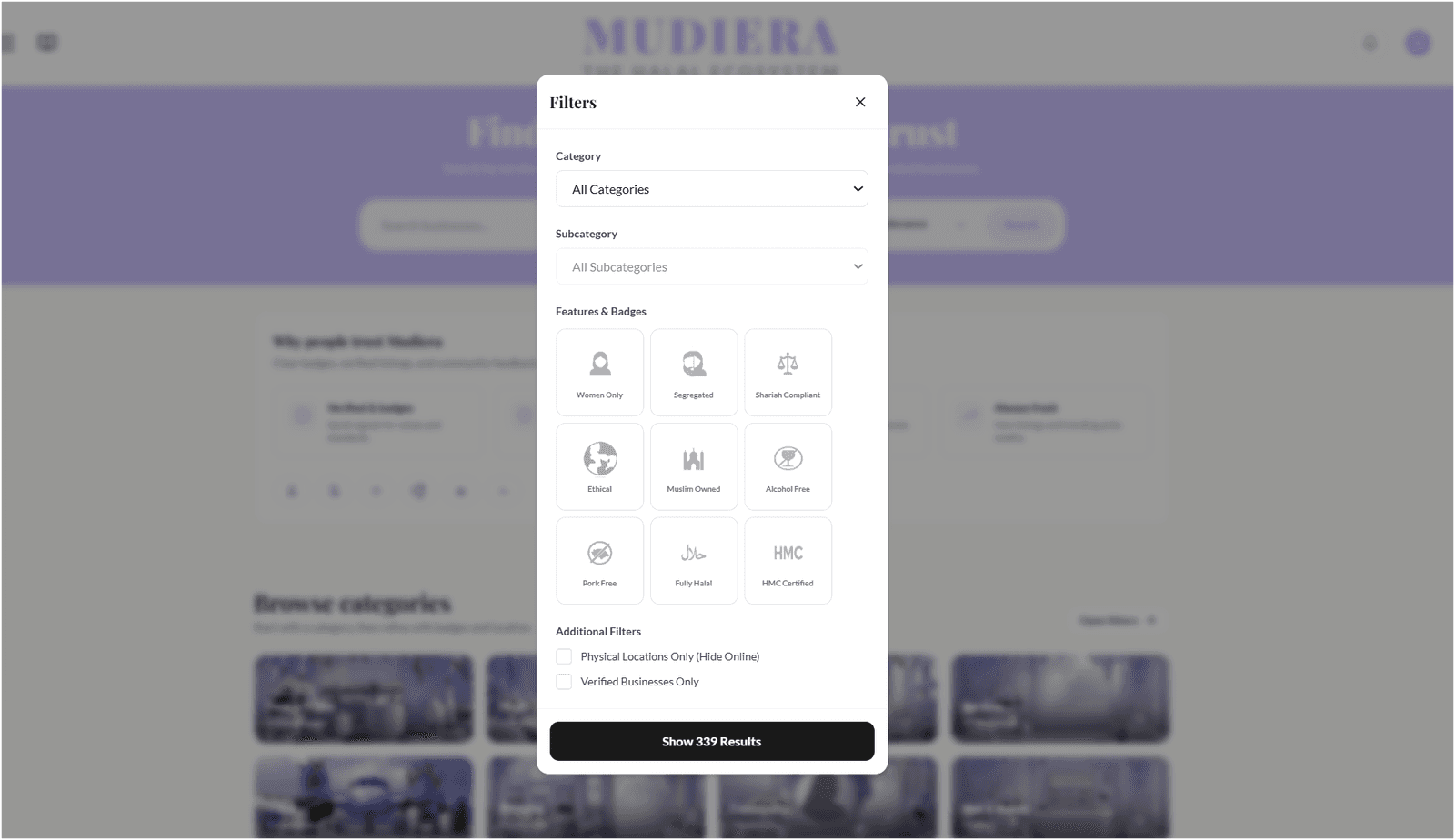
Directory tutorial: search, filters, and favourites
Directory The directory is your home for discovering businesses and services. Use search, filters, and favourites to build a shortlist you can come back to anytime. Search Keywords Search works best when you describe what you want in plain language. Start broad, then narrow down with a city or category. Try keywords like: name , category , city Example searches: hijab London , halal bakery , barber Birmingham Tip: if you get too many results, add a city or a more specific category. Filters + sorting Narrow results Filters help you narrow down fast. Sorting helps you decide what to open first (popular, highly rated, or newly added). 1 Open filters Tap Open filters . 2 Choose category and badges Pick a category, then add any badges that matter to you. Tip: start with one filter, then add more only if you still see too many options. 3 Sort your results Sort by Trending , Top rated , or New this week . Tip: use Top rated when you want proven favourites, and New this week to discover fresh businesses. Save favourites Shortlist If you find a business you like, save it so you can come back later without searching again. Tap the heart ♥ to save a business. Open your dashboard to see saved favourites anytime. Tip: favourites are great for comparing a few options before you message or book. What it looks like Here’s a quick preview of directory filters:

Create your account + profile
Create an Account Creating an account unlocks messaging, favourites, clubs, bookings, and your dashboard. It also lets you set up a profile so people can recognise you and find you easily. Sign up Takes 1 minute Start with your email and password. If email confirmation is enabled, you’ll be asked to verify before you can use all features. 1 Tap Sign up Tap Sign up from the header or menu. 2 Enter your details Enter your email and password, then submit. Tip: use a password you don’t reuse on other sites. 3 Confirm via email (if asked) If you’re prompted, open the email and confirm your account. If you can’t find it, check spam/junk and search your inbox for “Mudiera”. Set up your profile A good profile makes you easier to recognise in messaging and helps people trust that you’re real. You can always update this later. Username: pick something memorable — people will search it. Tip: avoid lots of numbers; keep it short and easy to spell. Avatar: add a photo or logo so you look real in messaging and blogs. Clear face photos or clean logos usually get the best response rates. Bio: 1–2 lines is enough. Example: “Modest fashion stylist in London — message for appointments.” Quick safety checklist These basics protect your account and help you spot suspicious activity quickly. Use a strong password. A mix of words or a password manager is ideal. Don’t share one‑time codes. Mudiera will never ask you to message or post verification codes. If something looks suspicious: log out and reset your password. Then sign back in and review your account settings. What it looks like Here’s a quick preview of profile setup:

Install Mudiera on your phone — 60 second setup
Quick tutorial Install Mudiera on Your Phone The best way to experience Mudiera is to install it on your phone like an app. Installing it gives you a home‑screen icon , faster loading, and a clean full‑screen layout that feels smooth and distraction‑free. Open mudiera.com Why install it? Once Mudiera is installed, it opens more quickly and behaves like a dedicated mobile app. This makes browsing, messaging, and booking feel more seamless and reliable. Below are two short walkthroughs. Pick your device and follow along once — you’ll be done in under a minute. Android Chrome On Android, Chrome can install Mudiera in seconds. When you’re finished, you’ll find Mudiera on your home screen like any other app. 1 Open Mudiera in Chrome Open Chrome, then tap the button below to load Mudiera. Open in Chrome 2 Tap the menu Tap the menu button in the top‑right corner. If you don’t see an install option right away, scroll the menu slightly. 3 Install Mudiera Choose Install app (or Add to Home screen , depending on your Chrome version). 4 Confirm Confirm the prompt. Mudiera will appear on your home screen and can be opened like a normal app. iPhone / iPad Safari iOS installs Mudiera through Safari’s Share menu. Make sure you open the site in Safari directly (not inside another app’s built‑in browser). 1 Open Mudiera in Safari Open Safari, then tap the button below to load Mudiera. Open in Safari 2 Tap Share Tap the Share button (square with an upward arrow). 3 Add to Home Screen Select Add to Home Screen , confirm, and you’ll see Mudiera on your home screen . If you don’t see an “Install” option This usually comes down to the browser you’re using or how the page was opened. Try these quick checks: Refresh once to reload any install UI. Make sure it’s HTTPS (secure sites install best). Use the right browser : Safari on iPhone, Chrome on Android. Tip: After installing, always open Mudiera from your home screen . This gives you the smoothest, fastest, and most consistent experience.
Reviews & Recommendations
Recommended: Amanah Tutors
soo good
Recommended
Recommended
Recommended